🪟 Built for Windows 10 & 11

Time tracker for Windows 10 & 11,
right in your system tray.

Toolscase is a time tracker for Windows that runs from the system tray: start a timer against a project, keep tracking offline, and, if your team uses them, capture screenshots and activity levels. It installs from a standard .exe on 64-bit Windows 10 or 11 and is free for up to 5 users.

Quick answer: Toolscase installs as a standard .exe on 64-bit Windows 10 or 11 and runs from the system tray. On first run, Windows SmartScreen may show "Windows protected your PC" — click "More info" then "Run anyway." This happens because the installer doesn't yet have SmartScreen's reputation history or an EV certificate, not because anything is wrong with it. It's the same warning many newer, independently distributed Windows apps trigger.

Toolscase on Windows at a glance

Windows versions64-bit Windows 10 and Windows 11, one build for both.
InstallerStandard .exe installer. Choose to install for just your account or for everyone on the PC.
PriceFree for up to 5 users. Paid plans: Starter $3, Pro $5, Agency $8 per user per month, with a 14-day free trial.
What it recordsTime per project and task, active app and window title, an activity level from keyboard and mouse input, idle time, and screenshots at the interval your admin sets. In supported browsers the address of the active tab is recorded as well.
Never recordedWhich keys were pressed, what was typed, and clipboard contents.
OfflineKeeps tracking without a connection and syncs when the PC reconnects.
Also runs onmacOS (Apple Silicon and Intel) and Linux (AppImage), with the same account and reports.

Comparing Windows time trackers? See how Toolscase stacks up as a Clockify alternative, a RescueTime alternative, or a free Insightful alternative.

Time tracking that fits how Windows users actually work

Windows is still the default operating system across most back-office, finance, accounting, and outsourcing environments, and for good reason — it's what IT teams know how to manage, image, and deploy at scale. A time tracker built for that world needs to behave like Windows software: an installer that runs the way Windows users expect, a system tray presence instead of a floating browser tab, and behavior that doesn't fight the operating system's own security model. Toolscase's Windows app is built specifically around those expectations rather than treated as an afterthought behind a Mac-first release.

The most common friction point for any newer Windows software — not just time trackers — is the first install. Windows Defender SmartScreen and, separately, Chrome's download protection both apply reputation-based warnings to executables that haven't yet built up a large download history or paid for an Extended Validation signing certificate. Neither warning is a verdict on whether the software is actually safe; both are about how new or small-scale the distribution still is. Understanding that distinction matters, because it's the single most common reason someone hesitates to finish installing a legitimate but newer Windows tool.

Once installed, the day-to-day experience is deliberately unobtrusive: a tray icon, a one-click timer, and background screenshot and activity capture that doesn't interrupt whatever else is running. The timer stops when the PC goes to sleep, screenshots pause while the screen is locked, and idle minutes show up in each session's activity level, so time spent away from the keyboard is visible rather than silently billed. None of this requires an employee to change how they use their PC day to day.

For IT-managed environments, there's a second layer worth addressing directly: rolling out a newer, independently distributed tool like Toolscase across dozens or hundreds of machines raises reasonable questions about deployment and endpoint security policy. A standard .exe installer fits into the same deployment tooling most Windows shops already use for other line-of-business software, and running as a normal user-level application means it doesn't require special privilege escalation or conflict with standard antivirus and endpoint protection — though newer executables can sometimes need an explicit allow-list entry the first time a security team reviews them, which is worth planning for during rollout rather than treating as a surprise.

Enterprise Windows environments also tend to split cleanly into two deployment traditions, and it's worth being specific about both rather than assuming one. Organizations still centered on Active Directory Group Policy Software Installation are used to distributing .msi packages, and a standalone .exe installer like Toolscase's needs a scripted wrapper or a packaging step to fit that specific pipeline cleanly. Organizations that have moved to a modern MDM/UEM platform like Microsoft Intune have an easier path, since Intune's Win32 app packaging is built to handle arbitrary .exe installers with defined silent-install and detection rules directly. Neither path is difficult for an IT team that's done this kind of third-party software rollout before, but knowing which camp your organization falls into ahead of time avoids surprises during a company-wide deployment.

Locked-down environments add one more consideration: application allow-listing through AppLocker or Windows Defender Application Control, common in regulated industries. Toolscase's installer and running executable can be added to either system the same way any approved business application is, once security has reviewed the specific binary — a one-time step during rollout, not an ongoing burden.

This page covers what Toolscase looks like specifically on Windows: system tray behavior, Windows 10 versus 11 support, a full explanation of the SmartScreen and Chrome download warnings, fleet deployment notes for IT teams covering Group Policy, Intune, and application allow-listing, a direct comparison against the scattered activity-tracking pieces already built into Windows, and a step-by-step install walkthrough from download to your first tracked session.

Built around how Windows users actually work

🖥️

System tray app

Lives near the clock, not in a browser tab. Open the timer from the tray icon to start, stop or switch projects.

🪟

Windows 10 & 11 support

One build, identical behavior on 64-bit Windows 10 and Windows 11 — no separate release or feature gap between versions.

📦

Straightforward .exe installer

A standard Windows installer that IT teams can wrap into managed deployment tools for fleet-wide rollout.

🛡️

SmartScreen, explained

The "Windows protected your PC" warning is a reputation flag common on newer installers — not a malware finding. Click through it once.

😴

Sleep- and lock-aware tracking

The timer stops when the PC sleeps, screenshots pause while the screen is locked, and idle minutes show up in each session's activity level.

📶

Offline tracking that syncs later

Time and activity data queue locally when a PC has no connection, then sync automatically the moment it reconnects.

The Windows details, explained properly

A system tray app that stays out of the way

Toolscase's Windows app lives in the system tray next to the clock, the same place Windows users already look for background utilities like antivirus status, cloud sync, or volume controls. You start and stop a timer, pick a project, and see your running total from a single click on the tray icon — no separate window competing for taskbar space all day.

Windows 10 and 11, the same experience

Toolscase runs identically on 64-bit Windows 10 and Windows 11, including the redesigned system tray and notification behavior introduced in Windows 11. There's no separate build or feature gap between the two — an organization mid-migration from Windows 10 to 11 doesn't need to worry about inconsistent tracking behavior across its fleet.

The SmartScreen warning, explained

The first time you run the Toolscase installer, Windows Defender SmartScreen may show "Windows protected your PC." SmartScreen bases its warning on reputation signals — primarily how many other Windows users have already run the same executable and whether it carries an Extended Validation certificate — not on an actual malware scan result. Newer or smaller-scale software commonly triggers this the first few times it's downloaded anywhere, independent of whether it's safe. Clicking "More info" then "Run anyway" proceeds with the install.

Chrome's separate download warning

Independently of SmartScreen, Chrome applies its own reputation check to downloaded .exe files and may show a "file can be dangerous" prompt in the download bar. This is a Chrome-specific safety feature layered on top of, not related to, whatever Windows itself decides. Using the ⋯ menu to choose "Keep anyway," or downloading with Edge or Firefox instead, resolves it.

Activity monitoring without keystroke logging

On Windows, as on every platform, Toolscase measures activity from the operating system's input idle time: every few seconds it checks whether there has been any keyboard or mouse input, and turns that into an activity level for each part of the session. It doesn't hook individual keystrokes, doesn't record which keys were pressed and doesn't read clipboard contents. That distinction matters for any organization that needs to explain its monitoring policy to employees.

Offline tracking for laptops on the move

Windows laptops move between office Wi-Fi, VPN-only corporate networks, and dead zones with no signal at all. Toolscase's desktop app keeps tracking locally when there's no connection — time blocks and activity data are stored on the machine and sync automatically the moment it reconnects, so a flight or a basement conference room doesn't cost anyone tracked hours.

Deploying Toolscase across a Windows fleet

IT teams managing dozens or hundreds of Windows machines rarely want to walk each user through a manual install. Because Toolscase ships as a standard .exe installer, it fits into the same deployment pipelines already used for other line-of-business software — Intune, SCCM, PDQ Deploy, or a simple scripted rollout — with silent-install flags typically supported by the installer for unattended pushes. Getting a company-wide account structure set up first, so machines authenticate against the right organization, makes a fleet rollout considerably smoother than installing one machine at a time.

Working well with Windows power management

Modern Windows power profiles — Battery Saver, manufacturer-specific "quiet mode" settings, and per-app background activity restrictions — are designed to extend battery life by limiting what background processes can do. Toolscase's Windows app is built to behave like any well-mannered background utility under normal profiles, but very aggressive power-throttling on some laptops can occasionally delay a screenshot or a sync until the app gets its next scheduling window. Excluding Toolscase from aggressive battery-saving restrictions, where your device offers that option, avoids the delay entirely.

Group Policy, Intune, and enterprise deployment realities

Windows-heavy organizations tend to fall into one of two camps for software deployment: the older Active Directory Group Policy Software Installation model, built primarily around .msi packages, or a modern MDM/UEM platform like Microsoft Intune, which handles a broader range of installer formats more gracefully, including .exe installers with silent-install arguments. Toolscase's current .exe installer fits the Intune-style deployment model directly, since Intune's Win32 app packaging is designed to wrap arbitrary .exe installers with defined install and detection rules. For organizations still primarily on Group Policy Software Installation, deploying a non-.msi installer typically means either a startup script that silently runs the .exe, or a third-party packaging step to produce an .msi-compatible wrapper — a common, well-understood pattern for any third-party .exe-only software in a GPSI environment, not a Toolscase-specific obstacle. Either path is a one-time IT setup cost rather than something that has to be repeated per machine.

AppLocker, WDAC, and locked-down enterprise environments

Financial services, healthcare, and other compliance-heavy Windows environments frequently run application allow-listing through AppLocker or Windows Defender Application Control (WDAC), which blocks any executable not explicitly approved by hash, publisher certificate, or file path. Toolscase's installer and running executable can be added to either allow-listing system the same way any approved third-party business application would be, once your security team has reviewed the specific binary being deployed. Because these policies are configured against the actual files IT is pushing out — not against a Toolscase-provided default entry — getting this right is a coordination step between IT security policy and whichever deployment method (Intune, GPSI, or manual) your organization uses, done once during initial rollout rather than repeatedly.

What a normal day looks like

A typical day: you sign into Windows, the Toolscase tray icon is already sitting near the clock, and you open it to start a timer against whichever project you're working on. Screenshots (if your workspace uses them) are taken quietly in the background at the interval your admin set, and they pause while the screen is locked. If your laptop goes to sleep, the timer stops automatically; if you step away with it running, the idle minutes show up in that session's activity level. On the Pro plan, an AI-generated summary then describes what got done (hours per project, activity, any Git commits tied to the session), so a manager reviewing five or ten people's days doesn't have to chase status updates.

Toolscase vs. Windows' built-in activity tools

Unlike macOS's single Screen Time feature, Windows spreads activity visibility across several disconnected tools — Task Manager's App History, per-app usage info in Settings, and Family Safety's screen-time reports for family accounts. None were designed for a work team, which is the gap Toolscase fills.

CapabilityToolscaseWindows built-in tools
Per-project / per-task time attribution
Manager-facing team dashboard
Screenshots as reviewable evidence
Mouse/keyboard activity level per session
Idle time recorded against each session
CSV reports for billing and payroll
AI-written daily summary of work done
Works across a whole company's PCs at once
Reports alongside Mac/Linux teammates
Per-app CPU/network usage on this one PC
Already built into Windows, zero install
Kanban board with task codes

Based on publicly documented Windows features. Microsoft may change these features over time.

Installing Toolscase on Windows, step by step

01

Create your free account

Register at timetracker.toolscase.com, no credit card required. Free covers up to 5 users with the full desktop app and 2-day screenshot retention.

02

Download the .exe installer

Grab the 64-bit Windows installer from the download page. It works on both Windows 10 and Windows 11.

03

Click through the SmartScreen warning

If Windows shows "Windows protected your PC," click "More info," then "Run anyway." This is expected for a newer installer, not a sign of a problem.

04

Run the installer

Follow the standard install wizard. You can install for just your account or for everyone on the PC; it adds a system tray icon when finished.

05

Sign in from the system tray

Click the new Toolscase icon near the clock to open the tracker and sign in with your account.

06

Pick a project and start your timer

Choose what you're working on and click start. Screenshots and activity monitoring (if enabled for your workspace and plan) run automatically from here.

07

For IT: verify allow-list and power-management exceptions after rollout

If your organization uses AppLocker, WDAC, or endpoint security allow-listing, confirm Toolscase's executable was approved and isn't being silently blocked or quarantined on a subset of machines. It's also worth checking whether any aggressive battery-saving or background-app-restriction policies pushed via Group Policy or Intune are delaying screenshot capture or sync on laptops, and adding an exception for Toolscase if so — a five-minute check that avoids a wave of "my screenshots aren't showing up" tickets after a company-wide rollout.

Full download links and the exact SmartScreen and Chrome warning workarounds live on the download page.

See Toolscase before you switch

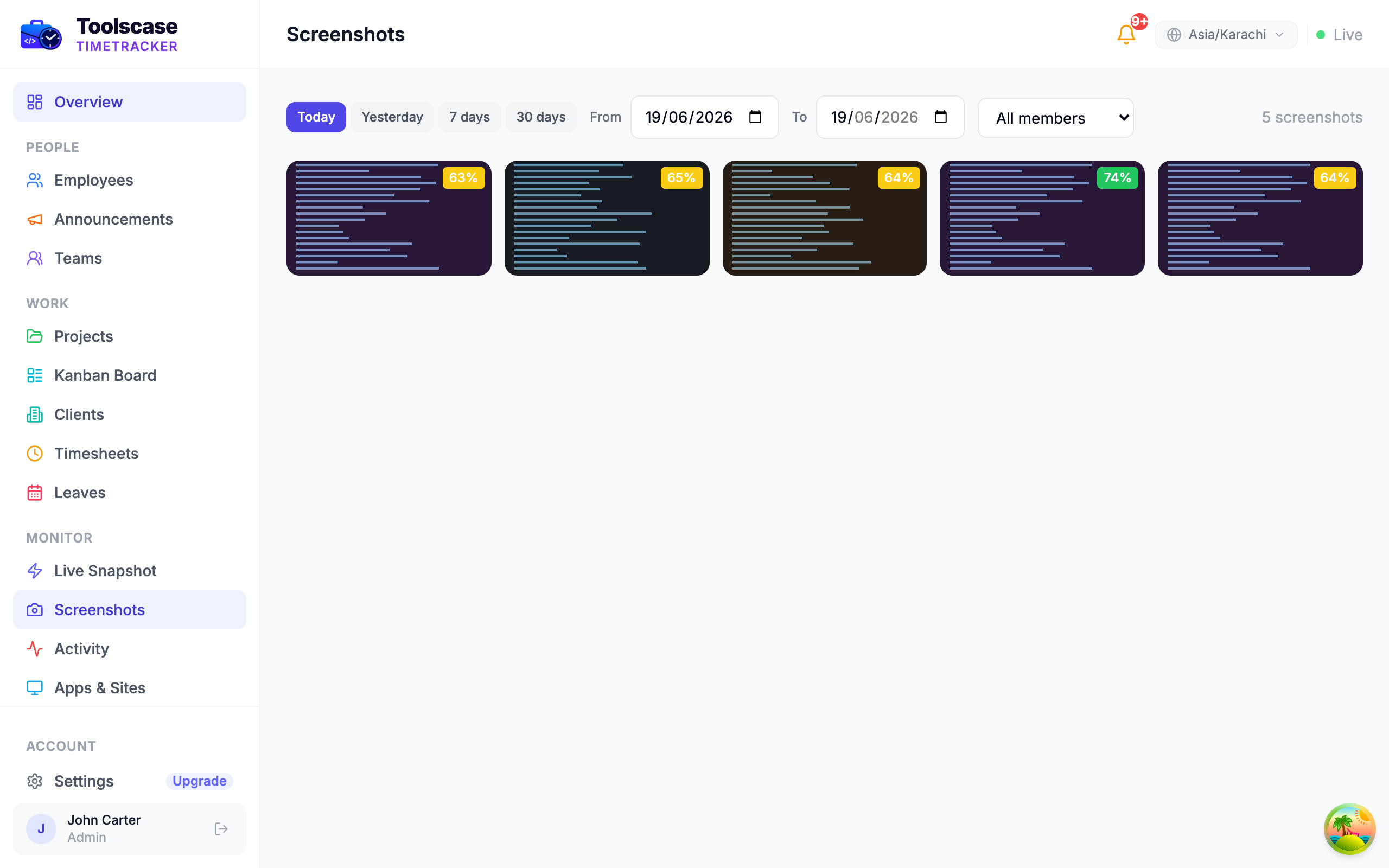
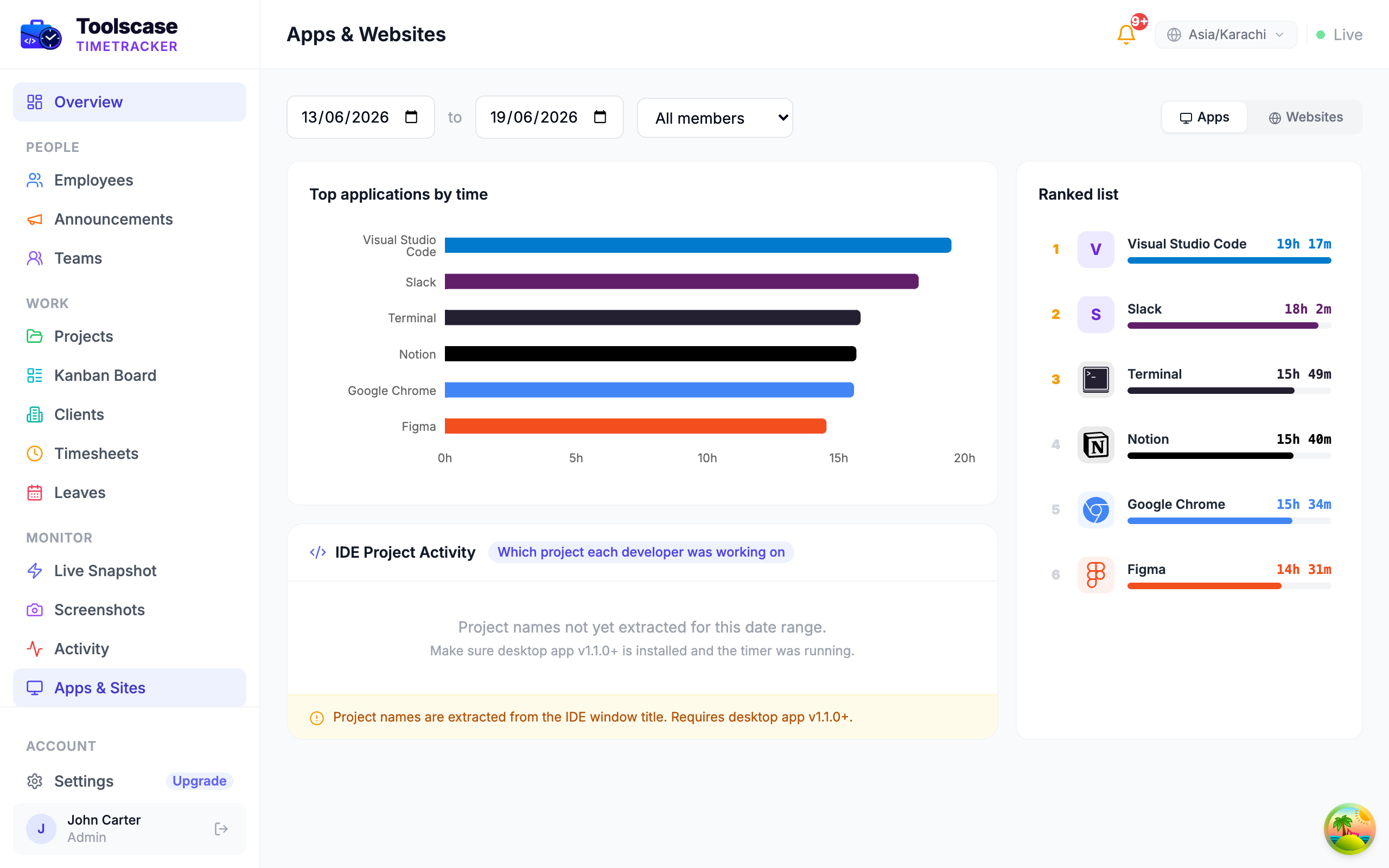
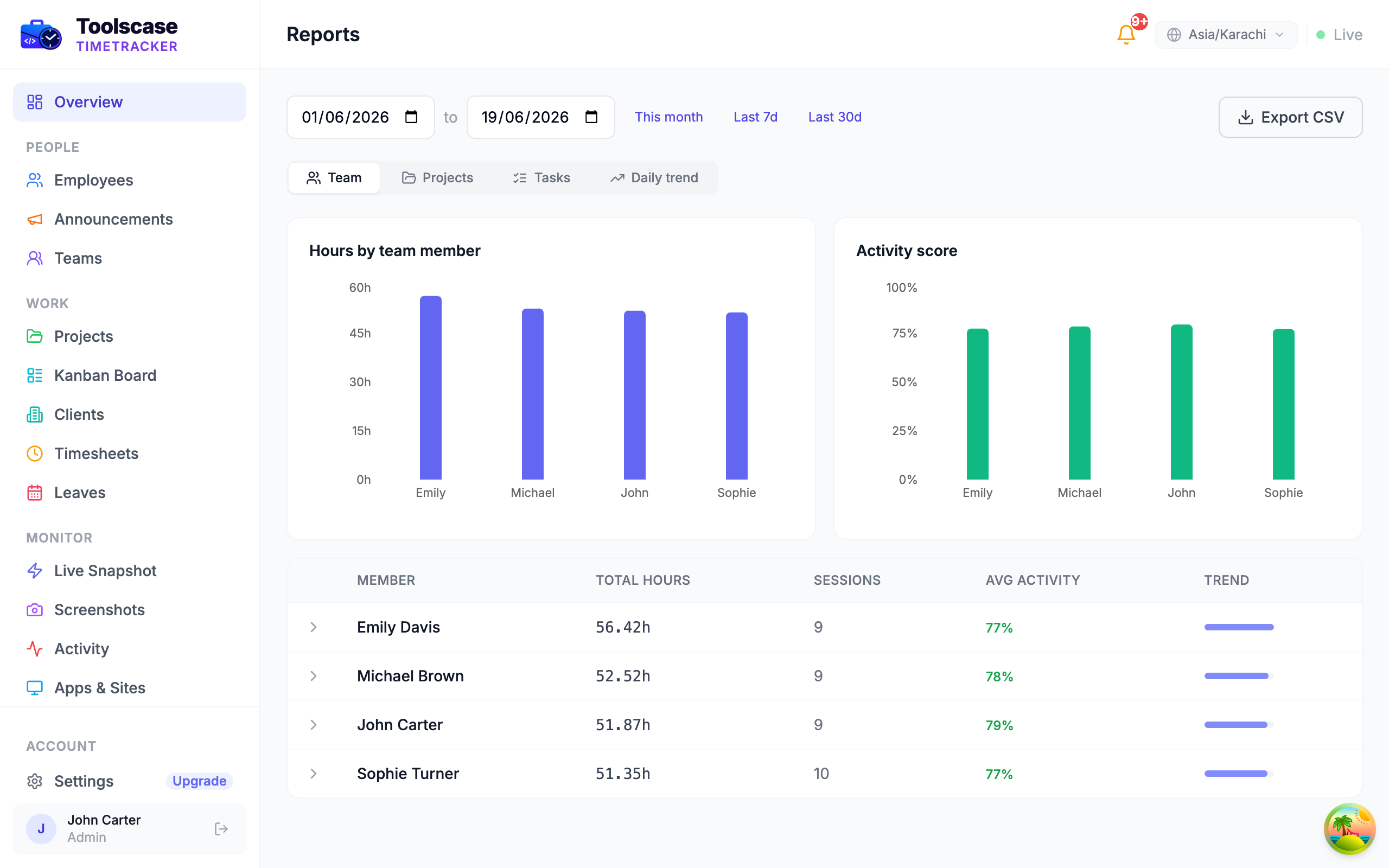
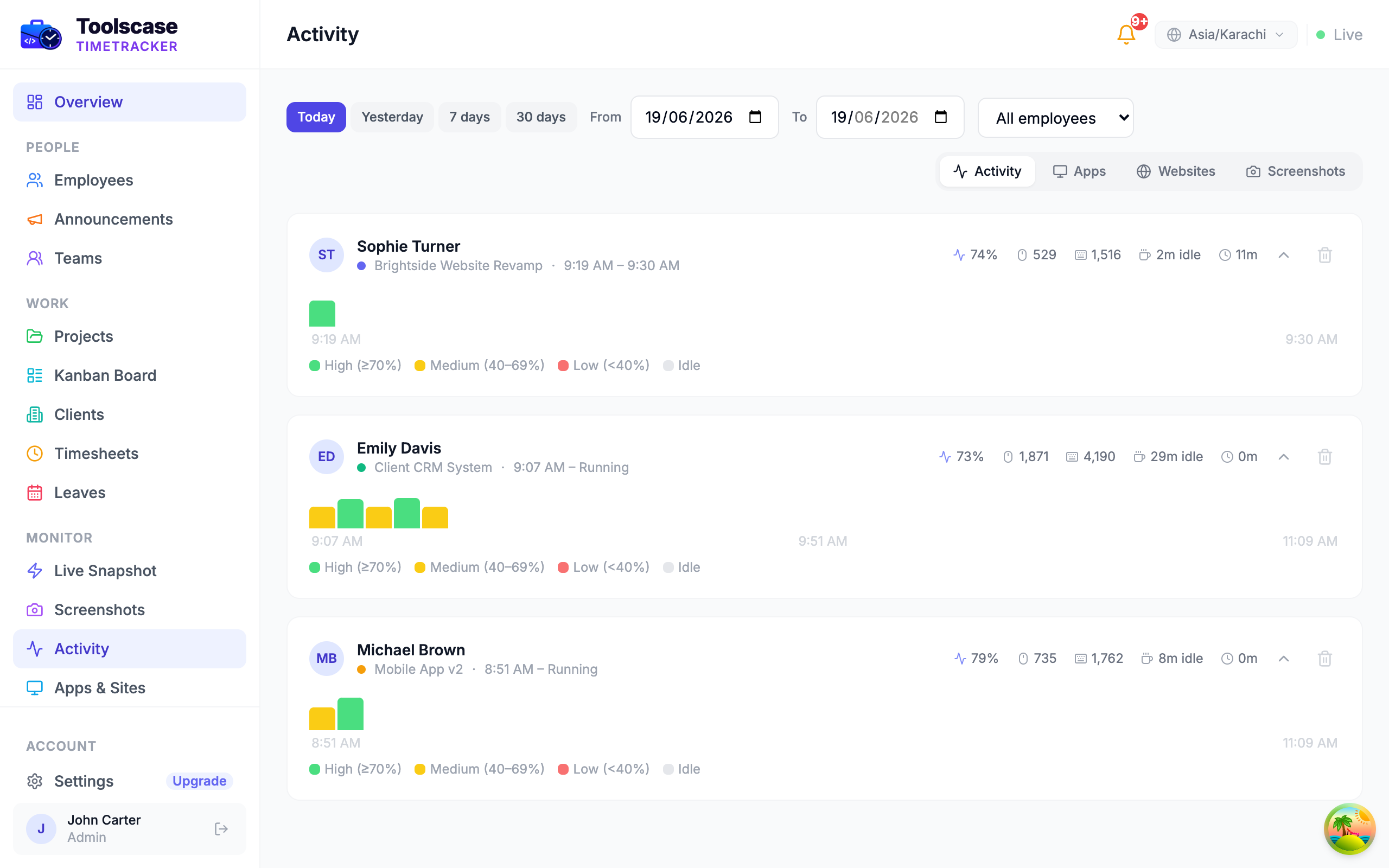
Screenshots from a real Toolscase workspace — the same screens your team would use day to day.

Toolscase Timetracker dashboard overview
A single dashboard for hours, projects, and team status — no tab-switching between a timer app and a spreadsheet.
Toolscase activity monitoring view
Per-session activity levels from mouse and keyboard events, shown next to the tracked time — not just a raw hour total.
Toolscase screenshot monitoring gallery
Configurable screenshot capture with blur and per-project opt-out, used as billing evidence rather than surveillance.
Toolscase app and website usage view
App and website usage broken down per employee, so managers can see where time actually went.
Toolscase reports view
Exportable reports built for client invoices, payroll, and manager review — not just raw CSV dumps.

Watch Toolscase in 90 seconds

A quick walkthrough of the timer, screenshots, AI daily reports, and Kanban board that make up the core Toolscase workflow.

Prefer a live walkthrough with your own use case? Book a demo →

Who's tracking time on Windows with Toolscase

Back-office and accounting teams

Windows remains the standard in back-office, finance, and accounting environments, where Toolscase's timesheet approval and payroll features slot directly into existing PC-based workflows without asking anyone to change platforms.

BPO and outsourcing operations

Shift-based operations running large fleets of Windows desktops get a consistent tracker across every seat, with a live dashboard that shows exactly who's tracking, idle, or offline at any point in a shift.

Enterprise IT and mixed-OS companies

Organizations standardized on Windows for most non-engineering staff can deploy the same account model and reporting Toolscase uses on Mac and Linux, so a company-wide report doesn't need to stitch together data from three different tools.

Windows-based freelancers and consultants

Independent contractors running Windows PCs use per-project task codes to separate client work cleanly, with the AI daily summary doubling as a ready-made status update or invoice note.

IT departments managing shared or loaner PCs

Organizations rotating desktops or laptops through multiple employees benefit from account-based tracking rather than device-based tracking — whoever is logged into Toolscase on a given PC gets their own accurate report, independent of which physical machine they happened to use that week.

Running shift-based operations? See how Toolscase fits BPO and call center teams, consultants and remote teams, or check the activity monitoring and live team snapshot feature pages for more detail.

Frequently asked questions

Why does Windows show "Windows protected your PC" when I run the installer?

That's Windows SmartScreen, a built-in Microsoft feature that flags any executable that doesn't yet have a large volume of download history or an Extended Validation code-signing certificate — regardless of whether the software is safe. It's common for newer or independently distributed Windows software, not specific to anything wrong with Toolscase. Click "More info" and then "Run anyway" to proceed. You'll typically only see this on the very first install.

Does Toolscase support both Windows 10 and Windows 11?

Yes. Toolscase runs on 64-bit Windows 10 or later, which covers Windows 11 as well. The system tray integration, activity monitoring, and screenshot capture all work the same way across both versions.

Is there an MSI installer for IT deployment, or only an .exe?

Toolscase currently ships as a standard .exe installer, available from the download page. For teams pushing installs to many machines at once, most software deployment tools (Intune, SCCM, PDQ Deploy, and similar) can run a standard .exe installer with silent-install flags as part of a managed rollout — check your deployment tool's documentation for wrapping third-party .exe installers if you need a fully unattended install.

Why did Chrome block my download of the Toolscase installer?

Chrome flags downloaded .exe files that aren't digitally signed with a certificate Chrome already trusts — a general browser safety feature, not a judgment about the specific file. In the Chrome download bar, click the ⋯ menu next to the file, choose "Keep," then confirm "Keep anyway." If the file was already removed, go to chrome://downloads and choose "Keep dangerous file," or download using Edge or Firefox instead.

Does Toolscase run in the system tray?

Yes. After installing, Toolscase adds an icon to the Windows system tray (the icon cluster near the clock). The tray menu shows whether you're tracking, and clicking the icon opens the tracker, where you start and stop your timer and switch projects. You don't need to keep a window open while you work.

Will Toolscase slow down my PC?

Toolscase is designed to sit quietly in the system tray and only do real work — capturing a screenshot, logging an activity block, syncing data — at set intervals. It isn't built to run continuous background computation. Actual resource usage depends on your specific hardware and how your admin has configured screenshot/sync frequency, so we won't quote a specific benchmark number, but it's built as a lightweight background utility rather than a heavy application.

Is there a free time tracker for Windows?

Yes. Toolscase is free for up to 5 users, including the Windows desktop app, project timers, offline tracking and screenshots kept for 2 days. Activity levels, app tracking and CSV exports start at $3/user/month on Starter, and AI daily summaries, timesheet approvals and Kanban come with Pro at $5/user/month.

What does Toolscase record on a Windows PC?

While a timer is running: the project and task, start and stop times, the active app and window title, an activity level based on keyboard and mouse input, idle time, and screenshots at the interval your admin sets. In Chrome, Edge, Firefox, Brave and Opera, the address of the active tab is recorded too, so website time can be grouped by domain.

Does Toolscase track keystrokes on Windows?

No. Toolscase checks whether there has been keyboard or mouse input to produce an activity level. It does not log which keys were pressed, read clipboard contents, or capture anything beyond periodic, configurable screenshots.

How is Toolscase different from Windows' built-in activity or app-usage tracking?

Windows doesn't ship one unified "Screen Time" feature the way macOS does — it offers scattered pieces instead: Task Manager's App History tab shows CPU and network usage per app, Settings shows install and last-used dates for apps, and Microsoft Family Safety offers screen-time reports for family accounts. None of these were built for work teams: no per-project attribution, no manager dashboard, no screenshots, no billing-ready reports. See the full comparison below.

Can I install Toolscase on a work laptop managed by my company's IT department?

That depends on your organization's device policies, not on Toolscase — some IT departments restrict which software employees can install directly. If your company has adopted Toolscase, IT will typically push the install centrally; if you're evaluating it individually, check with your IT team first on a managed device.

How do I uninstall Toolscase from Windows?

Go to Settings → Apps → Installed apps, find Toolscase Timetracker in the list, and choose Uninstall. This removes the desktop app and its system tray icon like any standard Windows program.

Does Toolscase work on Windows laptops that use Battery Saver or aggressive power-throttling settings?

Yes, though very aggressive power-saving profiles on some laptops can throttle background processes generally, which is a Windows power-management behavior that affects many background apps, not something specific to Toolscase. If you notice syncing or screenshot capture feeling delayed on battery, check whether Windows Battery Saver or a manufacturer-specific power profile is restricting background app activity, and add Toolscase as an exception if your device offers that option.

Can I run Toolscase alongside antivirus or endpoint security software?

Yes. Toolscase is a standard user-level desktop application and doesn't require disabling antivirus or endpoint protection to run. Some corporate endpoint security tools do flag newer, unsigned executables for review by default — if IT has deployed Toolscase company-wide, it's worth allow-listing the installer and the running process so it isn't repeatedly quarantined or flagged during routine scans.

Does Toolscase support multiple monitors on Windows?

Yes, it runs normally on multi-monitor setups. Activity tracking covers keyboard and mouse input on every screen; each screenshot captures the display you are working on (the one with the mouse cursor), not every monitor at once.

Does the Windows app support both light and dark mode?

The app is designed to be comfortable to leave running all day alongside your normal desktop, and follows standard Windows visual conventions rather than clashing with whatever theme you already use system-wide.

Can I pin the Toolscase tray icon so it doesn't get hidden in the overflow area?

Yes — like any Windows tray icon, you can drag it from the hidden-icons overflow menu into the always-visible section of the taskbar, or adjust that behavior in Settings → Personalization → Taskbar → Select which icons appear on the taskbar. This is standard Windows taskbar behavior, not a Toolscase-specific setting.

Can our IT team deploy Toolscase using Group Policy instead of a manual install?

Group Policy Software Installation (GPSI) is traditionally built around .msi packages rather than standalone .exe installers, so a pure GPSI deployment of Toolscase's current .exe build typically needs to go through a wrapping step — either a Group Policy startup script that silently launches the .exe with its unattended-install flags, or a third-party packaging tool that converts the .exe into an .msi-compatible format for native GPSI distribution. Many Windows-shop IT teams already have a standard process for this, since it's a common pattern for deploying any third-party .exe-only software through Group Policy, not something unique to Toolscase.

What's the difference between deploying via Group Policy versus a modern tool like Intune?

Group Policy Software Installation is the older, on-premises Active Directory mechanism and generally expects an .msi package or a scripted wrapper for anything else. Microsoft Intune (or similar modern MDM/UEM platforms) is more flexible about installer formats and is generally the more straightforward path for deploying a standard .exe like Toolscase's installer today, since Intune Win32 app packaging natively supports .exe installers with silent-install command-line arguments. Organizations already using Intune for other software will likely find deploying Toolscase there simpler than retrofitting a Group Policy Software Installation pipeline built around .msi assumptions.

Does Toolscase respect Windows domain-joined account policies, like requiring a specific login?

Toolscase authentication is account-based at the application level — you log into the Toolscase desktop app with your Toolscase account credentials, separate from whatever Windows domain login is used to access the machine itself. It doesn't integrate with Active Directory authentication directly today, so a domain-joined PC and a personal Toolscase login are two separate credential systems that happen to both apply to the same physical device.

Can Toolscase be added to an allow-list in a locked-down enterprise Windows environment?

Yes, in the sense that it's a standard user-level executable that can be added to whatever application allow-listing mechanism your organization uses — AppLocker, Windows Defender Application Control, or a third-party endpoint security allow-list. Because the exact allow-list entry (by file hash, publisher, or path, depending on your policy) needs to reference the specific installer or executable your IT team is deploying, this is something your security team configures directly against the actual binary rather than something Toolscase pre-registers on your behalf.

Is there a way to standardize screenshot and activity monitoring settings across every Windows PC in the company, rather than configuring each one individually?

Yes — screenshot frequency, activity monitoring, and per-project settings are configured at the account and project level from the Toolscase web dashboard, not per individual desktop install. An admin sets the policy once centrally, and it applies consistently to every team member's desktop app regardless of which specific Windows PC they're using, which is a meaningfully different (and less error-prone) model than trying to configure monitoring settings machine by machine.

Try the Windows time tracker, free

Free for up to 5 users. Windows 10 & 11, no credit card required.