🍎 Native macOS app

A time tracker that lives
in your Mac's menu bar.

Toolscase is a native macOS time tracker — Apple Silicon and Intel builds, a menu bar app instead of a browser tab, and a clear explanation of exactly why macOS asks for Screen Recording and Accessibility permissions (and why that's completely normal).

Quick answer: Toolscase runs as a native macOS app — an Apple Silicon (M1–M4) build and a separate Intel build, living in your menu bar rather than a browser tab. It asks for two macOS permissions if your plan uses them: Screen Recording (for screenshots) and Accessibility (for activity-level monitoring, counting mouse/keyboard events only — never keystroke content). Both prompts are standard macOS behavior for any app doing those things, not something specific to Toolscase, and neither is required for basic timer use.

Why "just any time tracker" isn't quite right for a Mac

Mac users tend to notice when software doesn't feel native. A tracker that opens as a browser tab, or an Electron shell running an Intel binary through Rosetta on an M-series chip, is the kind of thing that quietly erodes trust in a tool you're supposed to leave running all day. Toolscase was built with that in mind: a genuine menu bar app, a dedicated Apple Silicon build for M1 through M4 Macs, and a separate Intel build for machines that still need it — not one binary awkwardly translated for both.

The other thing that separates a Mac-native experience from a generic one is how the app handles macOS's permission model. Screen Recording and Accessibility are two of the more visible privacy gates in modern macOS, and for good reason — they control genuinely sensitive capabilities. A time tracker that needs screenshots or activity monitoring has to ask for them, the same way Zoom, Slack's screen share, and dozens of other legitimate apps do. What matters is whether the app explains why it's asking, and whether it actually limits itself to what it claims. Toolscase's Accessibility use is scoped to counting mouse and keyboard events — never logging keystrokes, never reading clipboard data — and its Screen Recording use is scoped to periodic, configurable screenshots you can blur or disable per project.

There's also a practical, everyday-use argument for a native Mac app over a browser-based alternative. Browser tabs get throttled by the operating system when backgrounded, can be closed accidentally, and have no visibility into anything outside the browser itself — which means no IDE detection, no visibility into design tools like Figma or Sketch running as native apps, and no reliable idle detection tied to actual system sleep behavior. A native menu bar app doesn't have any of those blind spots, because it's running at the OS level rather than inside a sandboxed browser tab.

Mac users evaluating any kind of monitoring software also bring a reasonable amount of built-in skepticism to the table — Apple's whole platform philosophy is built around minimizing what apps can see and do without explicit, revocable consent, and macOS users have absorbed that expectation over years of permission prompts, sandboxing, and privacy nutrition labels. A time tracker asking for Screen Recording and Accessibility access is, on the surface, asking for exactly the kind of broad system visibility that expectation trains people to be cautious about. The honest answer isn't to downplay that those permissions are meaningful — they are — it's to be specific about the boundary: Toolscase uses Accessibility access to count input events, not log them, and Screen Recording access to take periodic, disclosed, configurable screenshots, not continuous silent surveillance. Being precise about that boundary, rather than vague reassurance, is what actually earns trust from a technically literate Mac user base.

For teams evaluating Toolscase specifically because they're a Mac-first shop — a design studio, a boutique agency, a startup that standardized on MacBooks for onboarding simplicity — there's also a practical rollout question beyond individual permission prompts: how does this look across ten, fifty, or two hundred company-owned Macs managed centrally through Jamf, Kandji, or Mosyle? That's covered in detail further down this page, including how Privacy Preferences Policy Control profiles let IT pre-approve the relevant permissions fleet-wide rather than generating a support ticket per new hire.

This page walks through exactly what Toolscase looks like on a Mac: the menu bar experience, the Apple Silicon build, a plain-language breakdown of the two permissions macOS will ask for, fleet deployment notes for IT teams, a real comparison against Apple's own Screen Time feature, and a step-by-step install walkthrough — including the one-time Gatekeeper warning every unnotarized Mac app triggers, and exactly how to get past it in under a minute.

Built around how Mac users actually work

📎

Menu bar app, not a browser tab

A small, always-available icon in your macOS menu bar. Start, stop, and switch projects without ever opening a browser or keeping a window in view.

🍏

Apple Silicon native

Dedicated arm64 builds for M1, M2, M3, and M4 Macs, plus a separate x64 build for Intel Macs. No translated fallback required.

🔒

Screen Recording, explained

Needed only if screenshots are enabled on your plan. The same standard macOS permission Zoom and Loom also request.

🖱️

Accessibility, explained

Needed only for activity-level monitoring — counting mouse/keyboard events, never logging keystroke content or clipboard data.

😴

Sleep-aware idle detection

Tuned to macOS lid-close and display-sleep behavior so idle time gets flagged instead of silently counted as active work.

📶

Offline tracking that syncs later

Time and activity data queue locally when your Mac has no connection, then sync automatically the moment it reconnects.

The macOS details, explained properly

A menu bar app, not a browser tab

Toolscase's macOS app is built to feel native to how Mac users actually work: a small menu bar icon, a one-click timer, and nothing else demanding your attention. There's no browser tab to keep open, no risk of accidentally closing the window mid-session, and no dependence on Chrome or Safari staying in the foreground. You start a timer from the menu bar, pick a project, and get back to work — the app stays out of the way until you need it again.

Apple Silicon, built properly, not just "compatible"

A lot of cross-platform desktop software still ships as an Intel build and leans on Rosetta 2 to run on Apple Silicon Macs — which works, but costs battery life and CPU overhead for a background app that's supposed to be unobtrusive. Toolscase ships a dedicated arm64 build for M1, M2, M3, and M4 Macs, alongside a separate x64 build for older Intel Macs. You get the native performance profile for whichever chip you actually have, not a translated fallback.

The Screen Recording permission, explained

If your Toolscase plan has screenshots enabled, macOS will prompt for the Screen Recording permission the first time a screenshot is captured. This is not unique to Toolscase — it's the same system permission macOS requires of Zoom, Loom, OBS, or any app that can see your screen. You grant it once in System Settings → Privacy & Security → Screen Recording, and macOS will remember your choice. If you decline, the timer and manual time entry continue to work fine; only the screenshot feature is affected.

The Accessibility permission, explained

App tracking — the feature that shows which apps you used during tracked time — requires the Accessibility permission, because that's the macOS-sanctioned way for an app to read the frontmost window's title. It's the same category of permission apps like window managers, text expanders, and remote-control tools request. Toolscase uses it only to read app names and window titles; it does not use it to read what was typed, and it cannot access clipboard contents through this permission.

Idle detection that respects how macOS actually sleeps

Mac idle detection needs to account for lid-close sleep, Energy Saver-triggered display sleep, and simply stepping away from the keyboard — three different states that all look different to macOS. Toolscase's idle detection is tuned around these behaviors: if there's no mouse or keyboard activity for a configurable period, or the Mac goes to sleep, the running timer flags that period so you can discard or keep it rather than silently billing idle time as active work.

Offline tracking for Macs that travel

MacBooks move — between offices, coffee shops, flights, and job sites with patchy Wi-Fi. Toolscase's desktop app keeps tracking locally when there's no connection: time blocks and activity data are stored on the Mac itself and sync automatically the moment it reconnects. You don't need to remember to do anything differently on a flight or in a basement server room with no signal.

Why the Gatekeeper warning isn't a red flag

The first time you open a freshly downloaded Toolscase build, macOS Gatekeeper will likely say it's from an "unidentified developer" or block it outright. This happens because Apple's notarization process — a separate step from code signing — hasn't yet been completed for every release build. Right-clicking the app and choosing "Open" (rather than double-clicking) bypasses this one-time check safely. It's the same warning independent, non-App-Store Mac software commonly triggers, and it says nothing about whether the app itself is safe to run.

Spotlight, the Dock, and staying out of your way

Toolscase is deliberately built to behave like the other menu bar utilities Mac power users already run day to day — password managers, menu bar organizers, system monitors — rather than presenting itself as a full application competing for Dock space and window management attention. It registers with macOS as a standard menu bar app, which means it doesn't inject itself unexpectedly into Spotlight search results beyond a normal app entry, doesn't claim global keyboard shortcuts by default, and doesn't need a persistent Dock icon to remain usable throughout the day. For a tool you're meant to leave running continuously in the background, this matters more than it might sound: a time tracker that behaves like a "real" foreground application — stealing focus, popping up windows, cluttering the Dock — quickly becomes something people quit out of habit rather than something they trust to just work. Toolscase is designed around the opposite instinct, closer in spirit to a system utility than a document-editing app, precisely because that's the category of software Mac users are most comfortable leaving running for eight hours a day without a second thought.

Deploying Toolscase across a fleet of company-owned Macs

Organizations managing more than a handful of Macs typically use a Mobile Device Management (MDM) platform — Jamf, Kandji, and Mosyle are the three most common in the Apple ecosystem — to push software installs and configuration to enrolled devices centrally rather than asking each employee to install manually. Toolscase's .dmg installer fits into that same workflow the way most third-party macOS business software does: IT packages it for managed deployment, and it installs the same way on every enrolled Mac. The more interesting piece for a fleet rollout is permissions: rather than having every employee individually click through the Screen Recording and Accessibility prompts, macOS supports Privacy Preferences Policy Control (PPPC) configuration profiles that let IT pre-authorize specific TCC permissions for a named, code-signed application across the fleet. Setting this up correctly requires IT to configure and test the profile against your specific MDM platform and macOS version — the exact steps vary a little by vendor — but the underlying capability is a standard, well-supported part of managing a Mac fleet, and it means a company-wide Toolscase rollout doesn't have to mean dozens of individual permission-prompt support tickets.

What changes once full notarization ships

The right-click-to-open Gatekeeper workaround described throughout this page is a temporary, one-time step tied to Apple's notarization process rather than a permanent feature of how Toolscase works on Mac. Once a given release build completes notarization, that specific build opens with a normal double-click, the same as any App Store or fully notarized third-party app — no warning dialog, no right-click, no Terminal command. Because notarization is a per-build process tied to Apple's review pipeline, it's worth checking the download page for the current state of the latest release rather than assuming every future version will need the same workaround indefinitely; this is an active area of ongoing distribution work, not a permanent limitation of the product.

What a normal day looks like

A typical day looks like this: you open your MacBook, click the Toolscase icon in the menu bar, pick the project you're working on, and hit start — the same three seconds it takes to open a note-taking app. Screenshots (if enabled) fire quietly every few minutes in the background; you might not even notice them happening. If you step away for lunch or your Mac goes to sleep, Toolscase's idle detection catches it and asks whether that gap should count. At the end of the day, an AI-written summary lands describing what got done — commits shipped, hours per project, a rough activity percentage — so nobody has to reconstruct their day from memory during a standup the next morning. None of it requires touching System Settings again after the first-time permission prompts.

Toolscase vs. macOS Screen Time

Screen Time is a genuinely useful personal feature — it's already on every Mac and gives you a rough sense of your own app-category usage. It was never built for teams, though: no project attribution, no manager visibility, no screenshots, no way for a client or a colleague to see any of it. That's the gap Toolscase fills.

CapabilityToolscasemacOS Screen Time
Per-project / per-task time attribution
Manager-facing team dashboard
Screenshots as reviewable evidence
Mouse/keyboard activity level per session
Idle detection with keep/discard prompt
Billing- and invoice-ready reports
AI-written daily summary of work done
Works across a whole company's Macs at once
Reports alongside Windows/Linux teammates
App-category usage on this one Mac
Already built into macOS, zero install
Kanban board with task codes

Based on publicly documented macOS Screen Time functionality. Apple may change Screen Time's features over time.

Installing Toolscase on a Mac, step by step

01

Create your free account

Register at toolscase.com — no credit card required. Free covers up to 5 users with the full desktop app and 2-day screenshot retention.

02

Download the right build for your Mac

Head to the download page and grab the Apple Silicon (M1/M2/M3/M4) build, or the Intel build if you're on an older Mac. Your browser can usually detect which one you need.

03

Open the .dmg and drag to Applications

Standard Mac install: open the disk image, drag the Toolscase Timetracker icon into your Applications folder, then eject the disk image.

04

First launch: right-click → Open

Since the app isn't yet notarized, double-clicking may block it. Right-click (or Control-click) the app and choose "Open," then confirm in the dialog. You only do this once.

05

Grant Screen Recording and Accessibility when prompted

If your plan uses screenshots or activity monitoring, macOS will ask for these permissions on first use. Approve them in System Settings → Privacy & Security to enable those features.

06

Log in, pick a project, start your timer

Sign in with your Toolscase account, select which project and task you're working on from the menu bar, and click start. That's the whole workflow from here on.

07

Confirm the permissions actually took effect

Open System Settings → Privacy & Security → Screen Recording and Accessibility and check that Toolscase Timetracker appears with its toggle switched on for each permission your plan uses. If either was declined at the initial prompt, this is where you can grant it retroactively — macOS doesn't always re-prompt automatically after a decline, so a quick manual check here avoids confusion later about why screenshots or activity data aren't showing up.

Full download links and the exact Gatekeeper workaround live on the download page.

See Toolscase before you switch

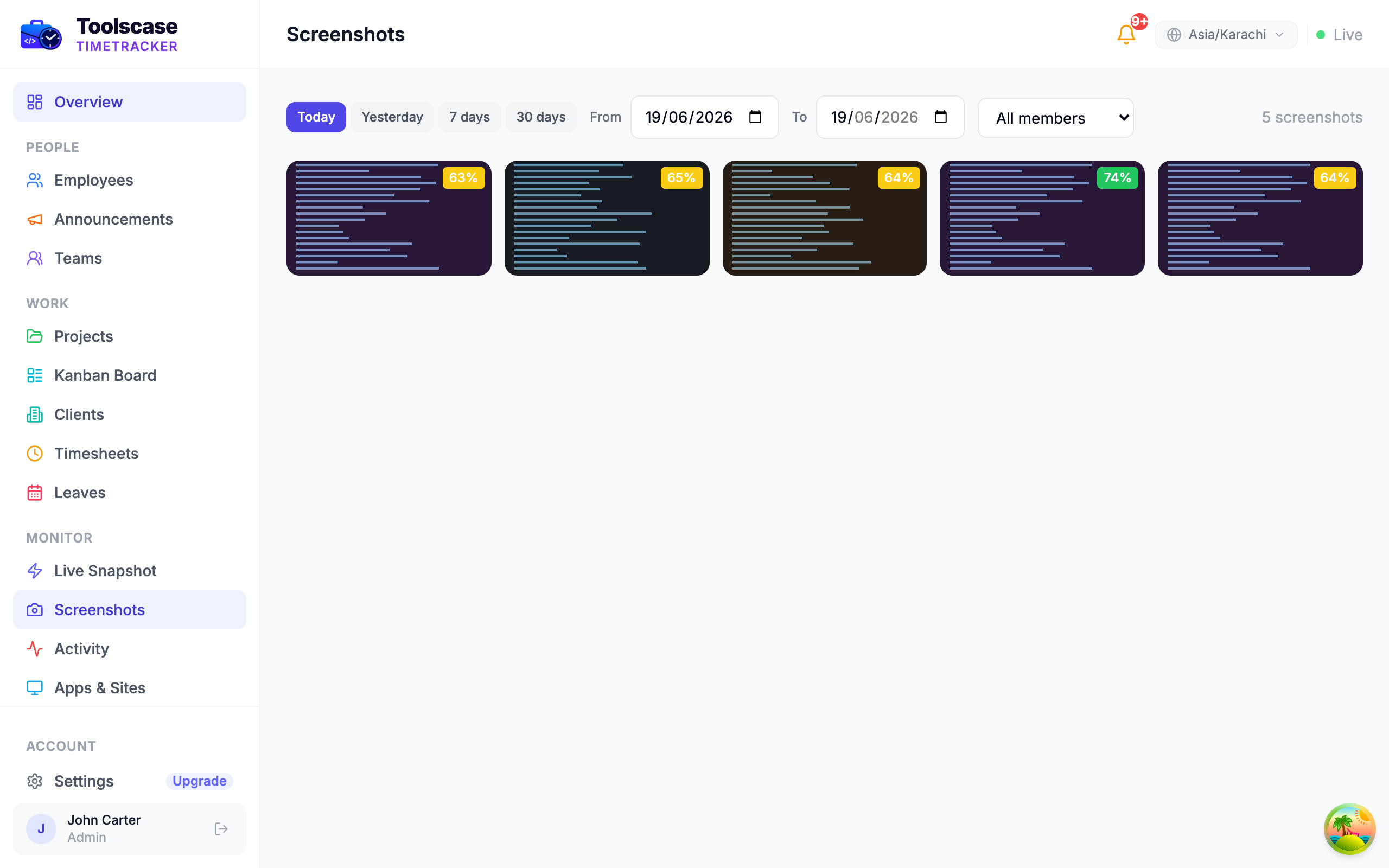
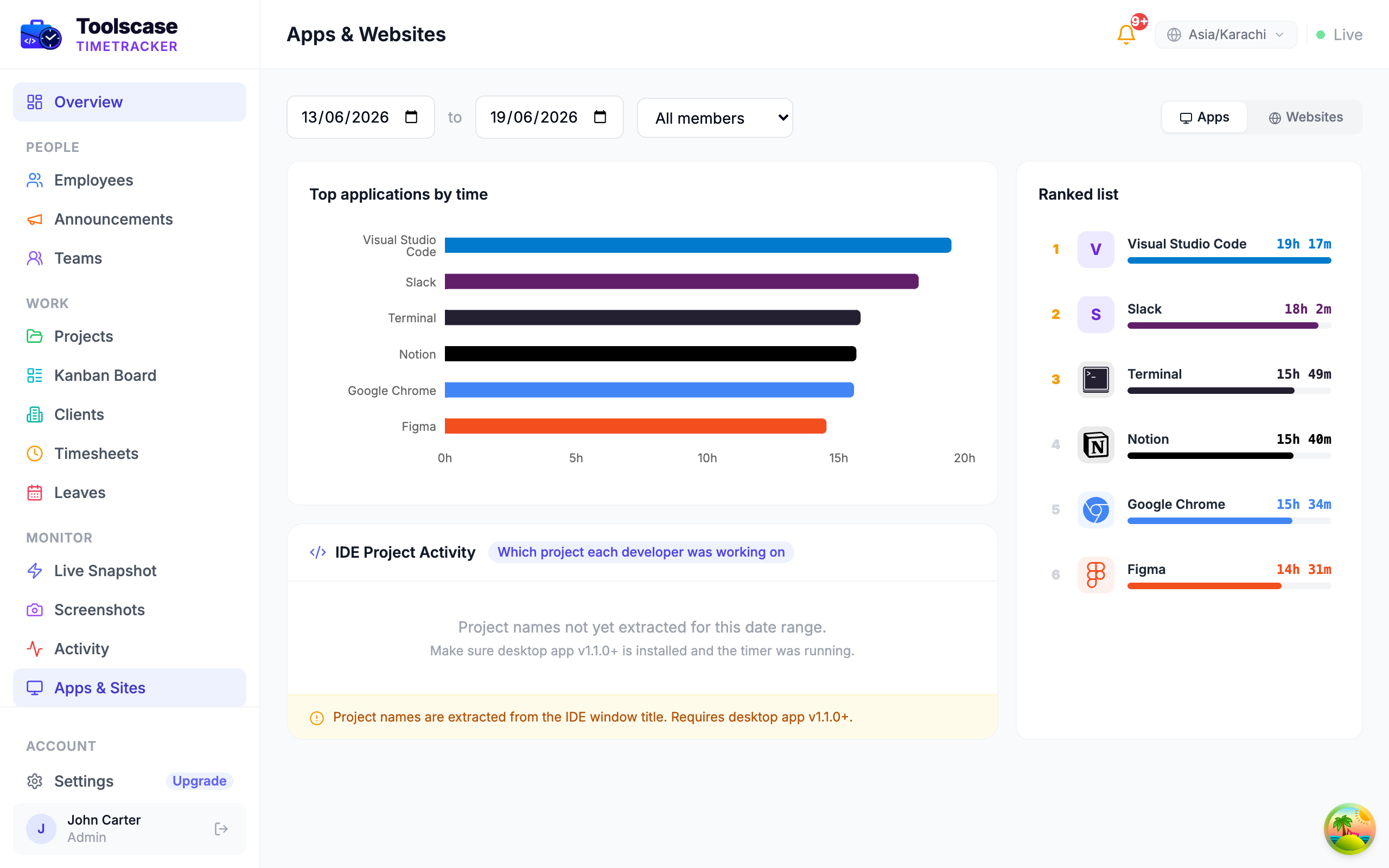
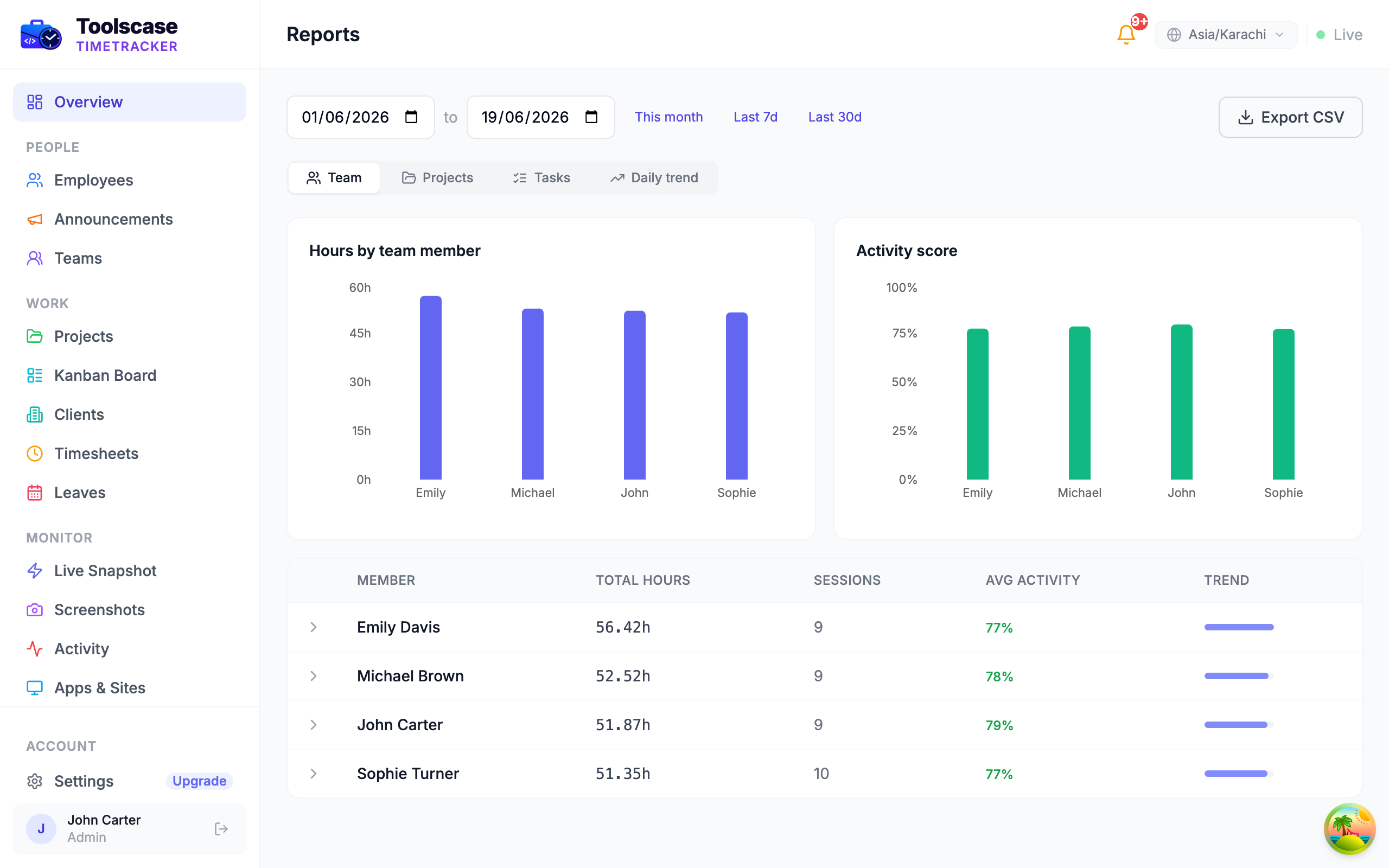
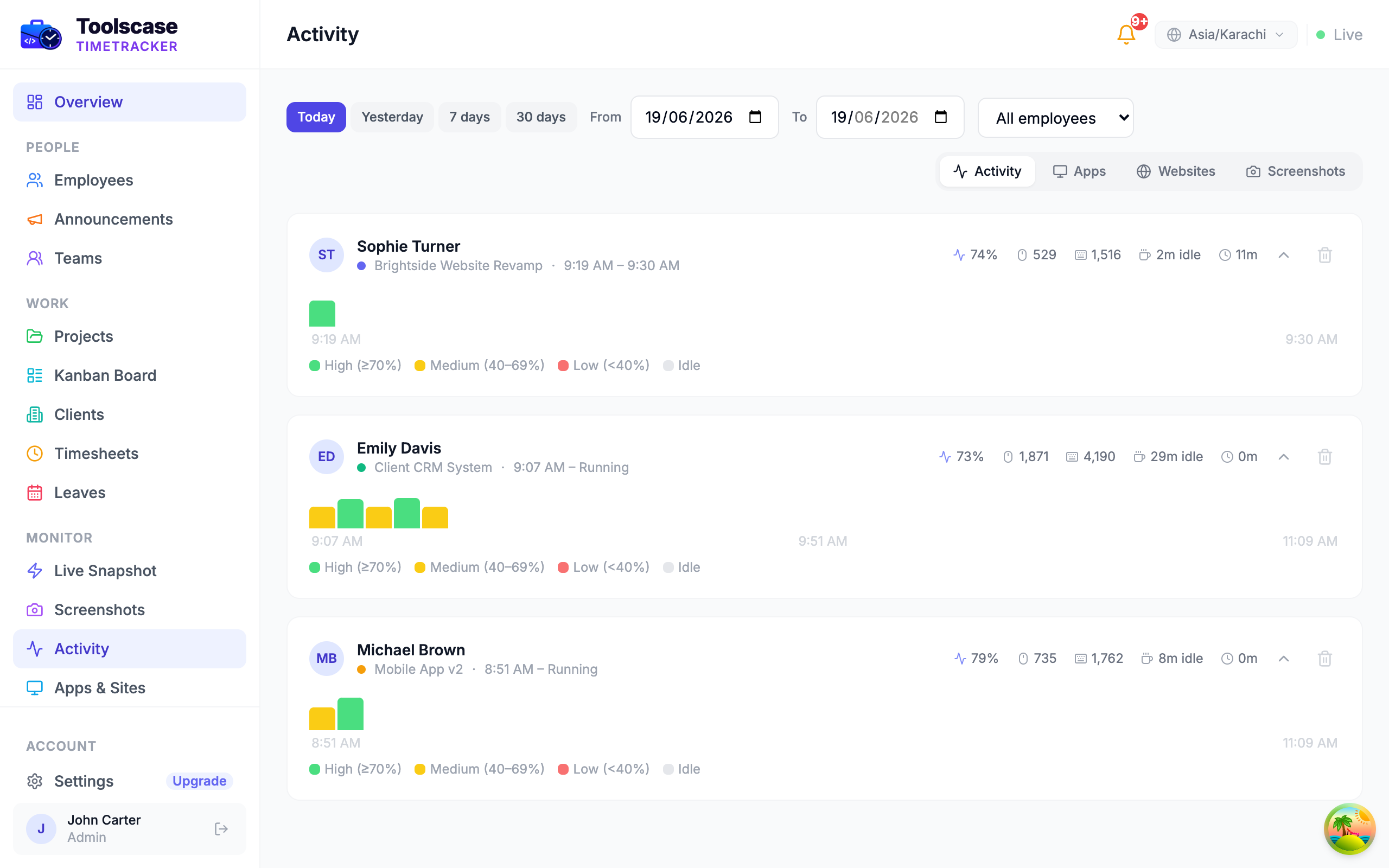
Screenshots from a real Toolscase workspace — the same screens your team would use day to day.

Toolscase Timetracker dashboard overview
A single dashboard for hours, projects, and team status — no tab-switching between a timer app and a spreadsheet.
Toolscase activity monitoring view
Per-session activity levels from mouse and keyboard events, shown next to the tracked time — not just a raw hour total.
Toolscase screenshot monitoring gallery
Configurable screenshot capture with blur and per-project opt-out, used as billing evidence rather than surveillance.
Toolscase app and website usage view
App and website usage broken down per employee, so managers can see where time actually went.
Toolscase reports view
Exportable reports built for client invoices, payroll, and manager review — not just raw CSV dumps.

Watch Toolscase in 90 seconds

A quick walkthrough of the timer, screenshots, AI daily reports, and Kanban board that make up the core Toolscase workflow.

Prefer a live walkthrough with your own use case? Book a demo →

Who's tracking time on a Mac with Toolscase

All-Mac software agencies

Agencies that standardize on MacBooks for their whole engineering team get a single, consistent tracking experience with no translation-layer performance questions — every developer runs the same native Apple Silicon build, and every hour rolls up into the same client-facing reports.

Design and video studios

Design and creative teams are disproportionately Mac-based, and screenshots plus activity levels give creative directors and account managers a way to show clients tangible evidence of design or edit sessions without asking freelancers to narrate their day.

Freelance developers and consultants

Independent Mac-based developers billing multiple clients use per-project task codes to keep hours cleanly separated, and the AI daily summary doubles as a ready-made line item for an invoice or a weekly client update.

IT and ops teams managing Mac fleets

Teams responsible for a company-wide Mac fleet get one place to see whether tracking is installed and active across every machine, instead of checking Screen Time device by device — useful when onboarding a batch of new hires on freshly imaged MacBooks.

Building a Mac-heavy engineering team? See how Toolscase works for developers and software houses, or check the activity monitoring and screenshots feature pages for more detail on how those permissions get used.

Frequently asked questions

Does Toolscase really need Screen Recording and Accessibility permissions on my Mac?

Yes, and both are standard macOS requirements, not something specific to Toolscase. macOS requires the Screen Recording permission for any application that captures screenshots — the same prompt appears for Zoom, Slack, or any screen-sharing tool. It asks for Accessibility and Automation so it can read the name and window title of the app you are using, which is how app tracking works. Activity levels come from the system idle timer and need no extra permission. If Toolscase has screenshots or activity monitoring enabled for your account, macOS will ask for these the first time each feature runs. Denying them simply means those specific features won't work; the timer itself does not require either permission.

If I grant Accessibility permission, can Toolscase read my passwords or see what I type?

No. The Accessibility permission lets Toolscase read which app is in front and its window title, for app tracking. It does not, and structurally cannot through the way Toolscase uses this permission, log which keys were pressed, capture password fields, or read clipboard contents. This is a meaningful distinction: a keylogger records content, an event counter records frequency. Toolscase only ever does the latter.

Is the Toolscase desktop app native on Apple Silicon Macs?

Yes. Toolscase ships a dedicated arm64 build for Apple Silicon (M1, M2, M3, and M4 Macs) alongside a separate x64 build for Intel Macs. You pick the correct one on the download page, or let your browser detect it for you. Running the correct native build matters for a background app like a time tracker — it means better battery life and lower CPU overhead than relying on Rosetta 2 translation, which is still there as a fallback for Intel-only downloads on Apple Silicon hardware but isn't the recommended path.

Why does macOS say Toolscase is from an "unidentified developer"?

macOS Gatekeeper flags any app that hasn't yet been notarized through Apple's notarization service, which is a separate process from code signing and takes time to complete for a smaller, independently distributed product like Toolscase. The fix is simple: right-click (or Control-click) the app in Applications and choose "Open" instead of double-clicking, then confirm "Open" in the dialog that follows. You only need to do this once. If macOS still blocks it, running sudo xattr -cr "/Applications/Toolscase Timetracker.app" in Terminal clears the quarantine flag. This is a standard step for many independently distributed Mac apps, not a sign anything is wrong with the download.

Does Toolscase sit in the Dock or the menu bar?

Toolscase is designed as a menu bar app — a small icon lives in the macOS menu bar at the top of your screen, similar to how apps like 1Password, Bartender, or Fantastical operate. That's where you start and stop your timer, switch projects, and see your current tracked time, without needing to keep a window or Dock icon in view all day.

Will Toolscase slow down my Mac or drain the battery?

Toolscase is built to run quietly in the background between the moments it actually needs to do work — capturing an occasional screenshot, logging an activity block, or syncing data. It is not designed to run continuous heavy computation, and the native Apple Silicon build in particular avoids the overhead of translated (Rosetta) code. As with any background utility, actual impact depends on your specific Mac, macOS version, and how often screenshots and syncing are configured, so we won't claim a specific benchmark number here — but it is built to be a background utility, not a resource-heavy application.

What macOS versions does Toolscase support?

Toolscase supports macOS 12 (Monterey) and later, matching what's listed on the download page. This covers the vast majority of Macs still receiving security updates, including both Apple Silicon and Intel hardware.

How is Toolscase different from macOS Screen Time?

Screen Time is a personal, single-device feature built for an individual to review their own app category usage — it has no concept of projects, no manager-facing dashboard, no screenshots, and it doesn't sync anywhere for a team to review. Toolscase is built for teams: time is attributed to specific projects and tasks, screenshots and activity levels provide evidence a manager or client can actually review, and everything rolls up into company-wide reporting across every Mac (and every Windows or Linux machine) your team uses. See the full comparison below.

Can I use Toolscase on more than one Mac with the same account?

Yes. Install the desktop app on as many Macs as you personally use — a work MacBook and a home iMac, for example — and log in with the same account on each. Time tracked from any device rolls up into the same reports under your name.

How do I uninstall Toolscase and remove its permissions?

Quit the app from the menu bar, then drag Toolscase Timetracker from Applications to the Trash like any other Mac app. To remove the granted permissions specifically, open System Settings → Privacy & Security → Screen Recording (and separately Accessibility) and toggle Toolscase off, or remove it from the list entirely using the minus button.

Does Toolscase interfere with Spotlight search or other menu bar apps I already run?

No. Toolscase registers with macOS the same way any standard menu bar application does, and it doesn't modify Spotlight indexing, intercept search queries, or claim system-wide keyboard shortcuts by default. It's designed to coexist peacefully with the other menu bar utilities many Mac power users already run — password managers, menu bar organizers like Bartender, system monitors like iStat Menus, and similar tools. If your menu bar is already crowded, macOS's own menu bar overflow behavior (or a menu bar organizer app) handles Toolscase's icon the same way it handles any other menu bar extra; there's nothing Toolscase-specific about how it behaves in a busy menu bar.

Can our IT team pre-approve the Screen Recording and Accessibility permissions through MDM so employees don't see prompts?

Generally yes, for organizations managing Macs through a Mobile Device Management platform such as Jamf, Kandji, or Mosyle. macOS supports Privacy Preferences Policy Control (PPPC) configuration profiles specifically designed to pre-authorize Screen Recording, Accessibility, and similar TCC (Transparency, Consent, and Control) permissions for a named application, which removes the individual click-through prompt for each employee. The exact profile configuration (matching Toolscase's bundle identifier and code-signing requirement) needs to be set up and tested by your IT team against your specific MDM platform, since PPPC profile behavior can vary slightly by MDM vendor and macOS version — but the underlying mechanism is a standard, well-documented part of managing Mac fleets, not something unique to Toolscase.

Does Toolscase support Mac fleets managed with Jamf, Kandji, or Mosyle?

Toolscase's .dmg installer can be packaged and deployed through any of the major Mac MDM platforms the same way other line-of-business macOS software is deployed — as a managed installation pushed to enrolled devices, typically paired with a PPPC profile to pre-approve the relevant permissions. If your organization already has a standard workflow for packaging third-party .dmg or .pkg software for Jamf, Kandji, or Mosyle, Toolscase fits into that same workflow without requiring anything unusual.

Does the app work correctly with macOS features like Stage Manager or multiple Spaces/desktops?

Yes. As a menu bar app rather than a windowed application competing for desktop space, Toolscase isn't affected by how you organize windows across Spaces or Stage Manager groups — the menu bar itself is a single, OS-level element that stays visible and consistent regardless of which desktop, Space, or Stage Manager set you're currently using. You don't need to reposition or relaunch it when switching between window arrangements.

What happens to my tracked Mac data if I switch from an Intel Mac to Apple Silicon later?

Nothing changes on the data side — your tracked time, projects, and history live on your Toolscase account, not on the specific machine you used. Install the Apple Silicon build on your new Mac, log in with the same account, and your history, projects, and settings carry over exactly as they would moving between any two devices. There's no migration step or data conversion required between the Intel and Apple Silicon builds.

Try the native Mac time tracker, free

Free for up to 5 users. Apple Silicon and Intel builds, no credit card required.